Home screen
No more icons tapped on reflex.
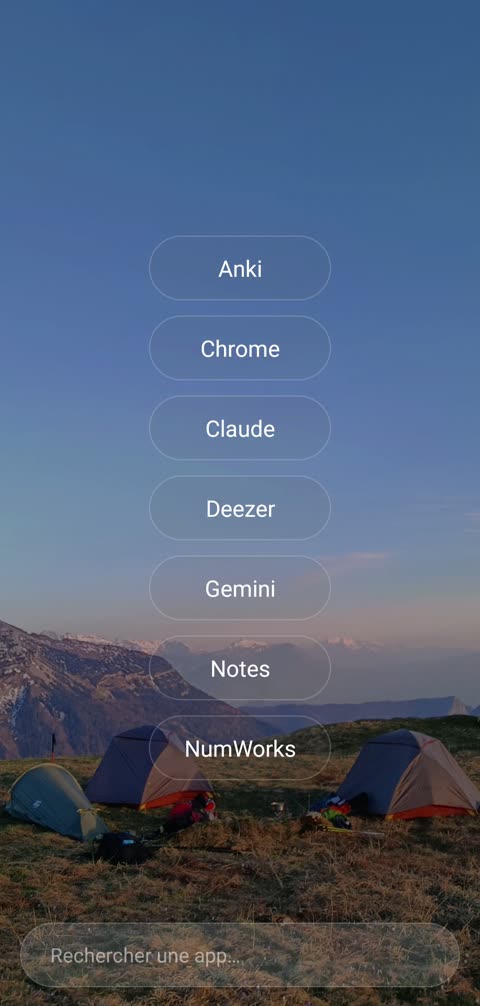
To open an app, you type its name. Two letters are enough, and the urge has time to pass.
Features
A home screen that breaks reflexes, reins in the apps that hold on to you and leaves you everything else. Every feature is filmed on a real phone.
Home screen
To open an app, you type its name. Two letters are enough, and the urge has time to pass.
Compulsive apps
For the apps you open without thinking, like your email. One second the first time, then three, six, nine, with every visit of the day. The reflex breaks on its own.
Addictive apps
Before you open Instagram or TikTok, Livetime asks how many minutes you want to spend there. When the time is up, the app closes and reminds you what you had planned to do. You can also set a daily time goal for each app.
Your limit
You choose whether you can add time once the limit is reached:
Instagram custom
Livetime opens Instagram in a lighter view. You keep your friends, your messages and your stories, and you choose what to remove:
YouTube custom
You come for one video, then you leave. In Livetime's lighter view, you can:
Modes
In Sleep, Focus or Sport mode, your home screen keeps only the apps for the moment. You schedule the ones that come back: Sleep can start on its own at 10 pm. And you choose the difficulty:
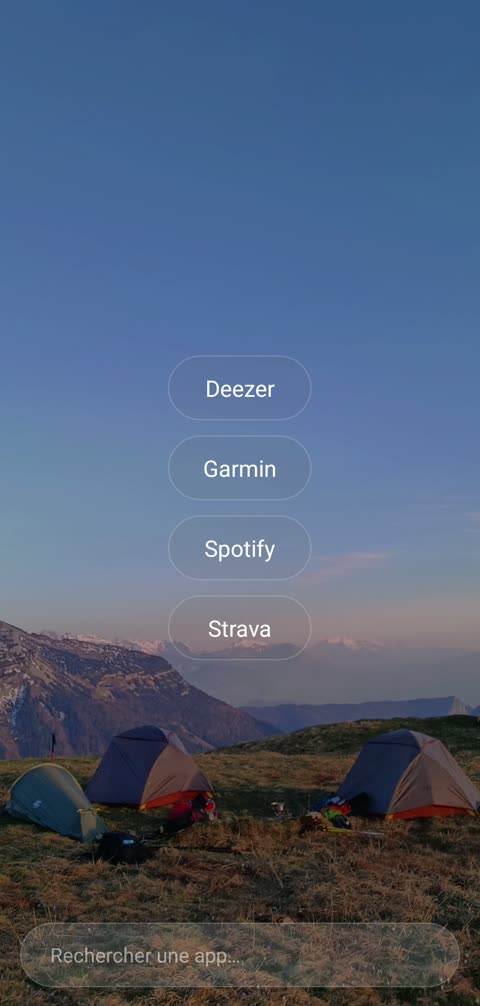
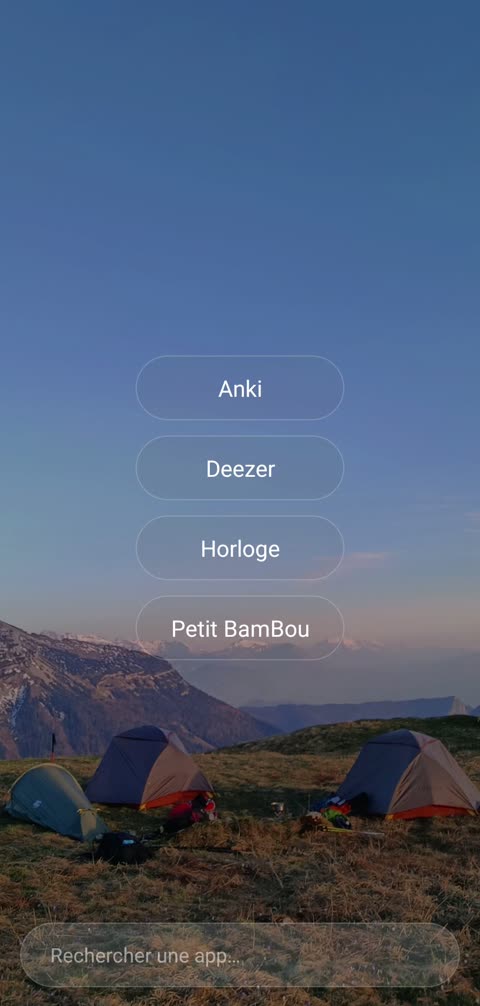
A mode for every moment
Each mode has its own apps. And since Livetime is your home screen, there's no other door to get around it.
Your screen time
Reviewing on Anki or following a route on Maps isn't wasted time. You choose which apps are distracting, and Livetime only measures the time that slips away from you, day after day and week after week.
And also
Getting started
Download Livetime on Google Play.
Do your check-in and estimate your screen time. Then a guided setup installs everything with you, step by step: it's all guided, and very simple.
Done. You're already starting to cut your screen time. Congratulations.
“Compared with all the other apps, it's the easiest one to get the hang of.”
To be clear